
How to Automate AE Admin Tasks with ChatAE
The Admin Problem for AEs
Account Executives carry a different administrative burden than SDRs. The tasks are more complex, higher-stakes, and harder to shortcut — which is exactly why they eat so much time.
AEs spend their days building account plans, mapping buying committees, preparing for calls, writing follow-up emails, updating pipeline, generating deal materials, and reporting internally on the same deals they're trying to close. Every hour spent on admin is an hour not spent in front of a buyer.
The frustrating part: most of this work is synthesis and preparation — pulling together information that already exists and packaging it for the next conversation or internal review. It requires context, but it doesn't require creative judgment. It's exactly the kind of work AI can handle.
Here's how to use ChatAE to automate the six admin tasks that consume the most AE time.
1. Account Planning Without the Blank Page
The manual version: Open a document. Pull up the CRM record. Check LinkedIn for org changes. Search for recent news. Try to synthesize everything into a plan. Realize the plan is already stale by the time you finish writing it.
With ChatAE: Your account plan builds itself from continuous research.
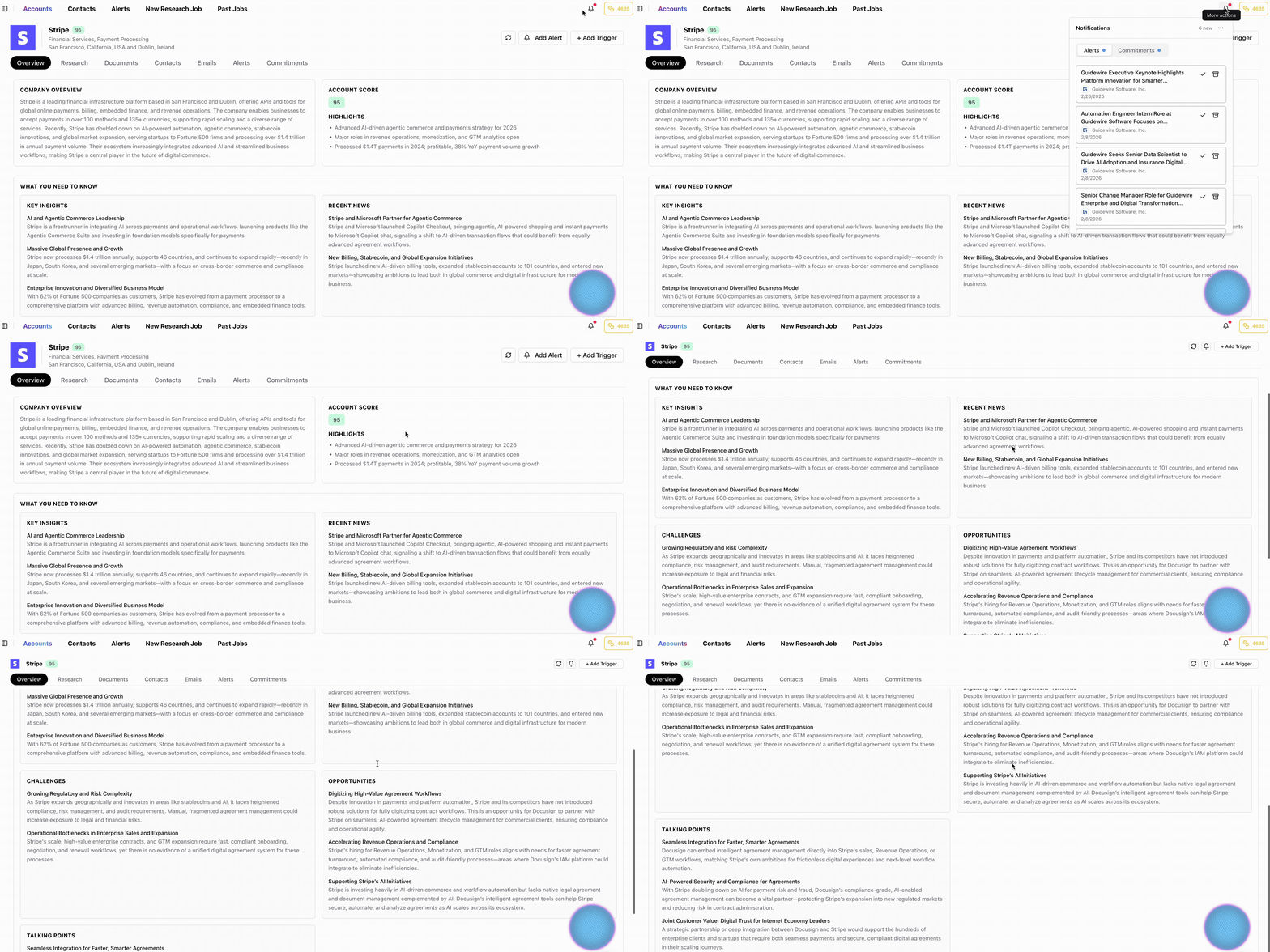
ChatAE maintains living account context. Instead of building an account plan once per quarter and watching it decay, you get continuously updated intelligence:
- What's happening at the account — leadership changes, product initiatives, strategic shifts, hiring patterns.
- Why it matters for your deal — every insight is evaluated against what you sell and how you sell it.
- What's changed since you last looked — new signals ranked by relevance and recency.
How to use it:
- Run research on your strategic accounts.
- Set your triggers to match the events that matter for your deals — executive moves, budget cycles, technology investments, competitive displacement.
- Before any planning session, open the account in ChatAE. The context is already there — synthesized, sourced, and current.
You're not building the plan from scratch. You're reviewing a brief that's been maintained for you continuously.
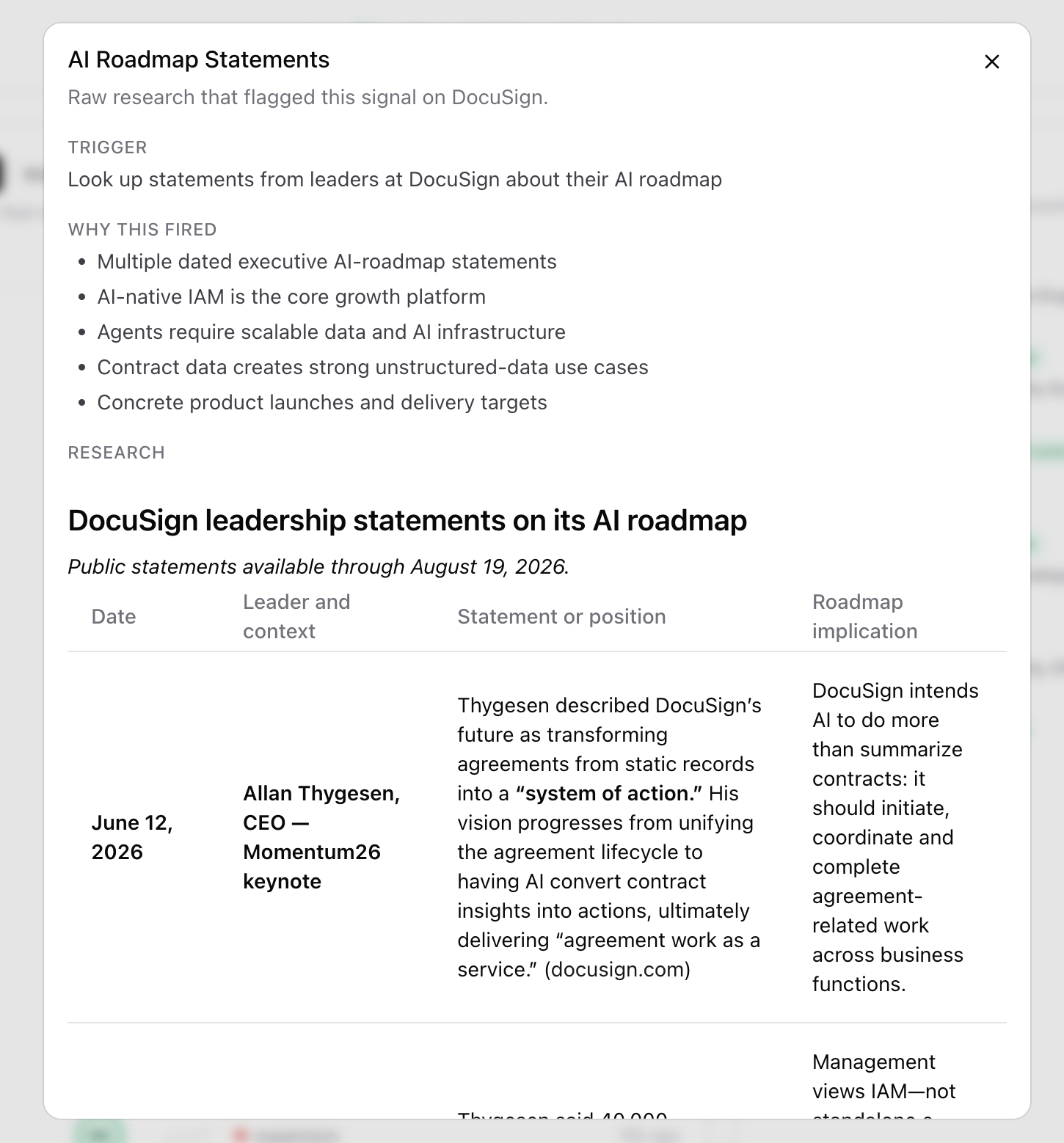
2. Stakeholder Mapping and Multi-Threading
The manual version: Ask your champion who else is involved. Search LinkedIn for org structure. Build a spreadsheet with names and titles. Try to figure out reporting lines. Realize three months into the deal that you've been single-threaded into a dead end.
With ChatAE: Build org charts from enriched contacts and map the buying committee visually.
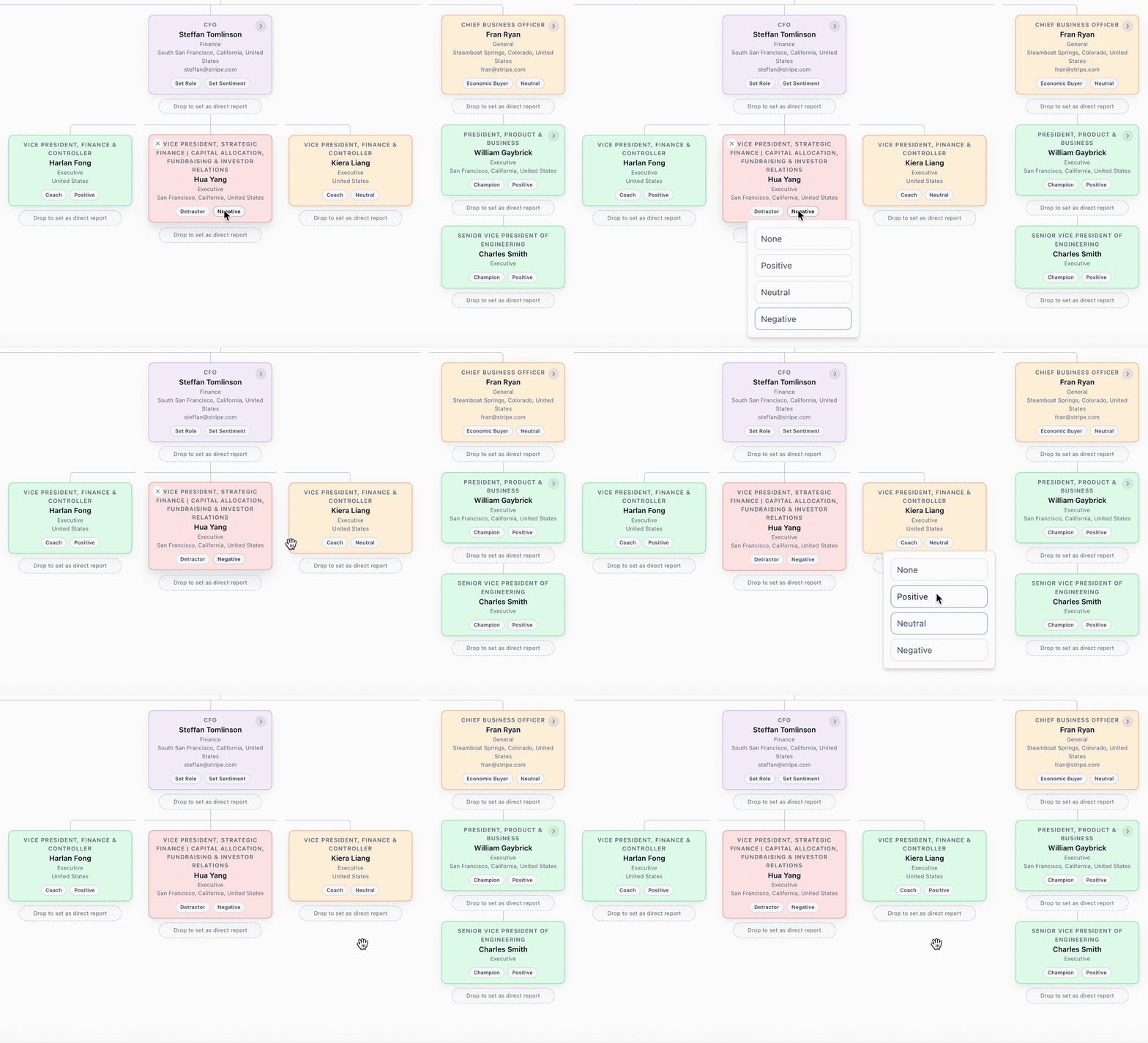
ChatAE combines contact enrichment with relationship mapping:
- Find the people who matter — waterfall enrichment across multiple providers surfaces C-level, VP, and Director contacts with verified data.
- See the structure — org charts built from your contacts show reporting lines and gaps in your coverage.
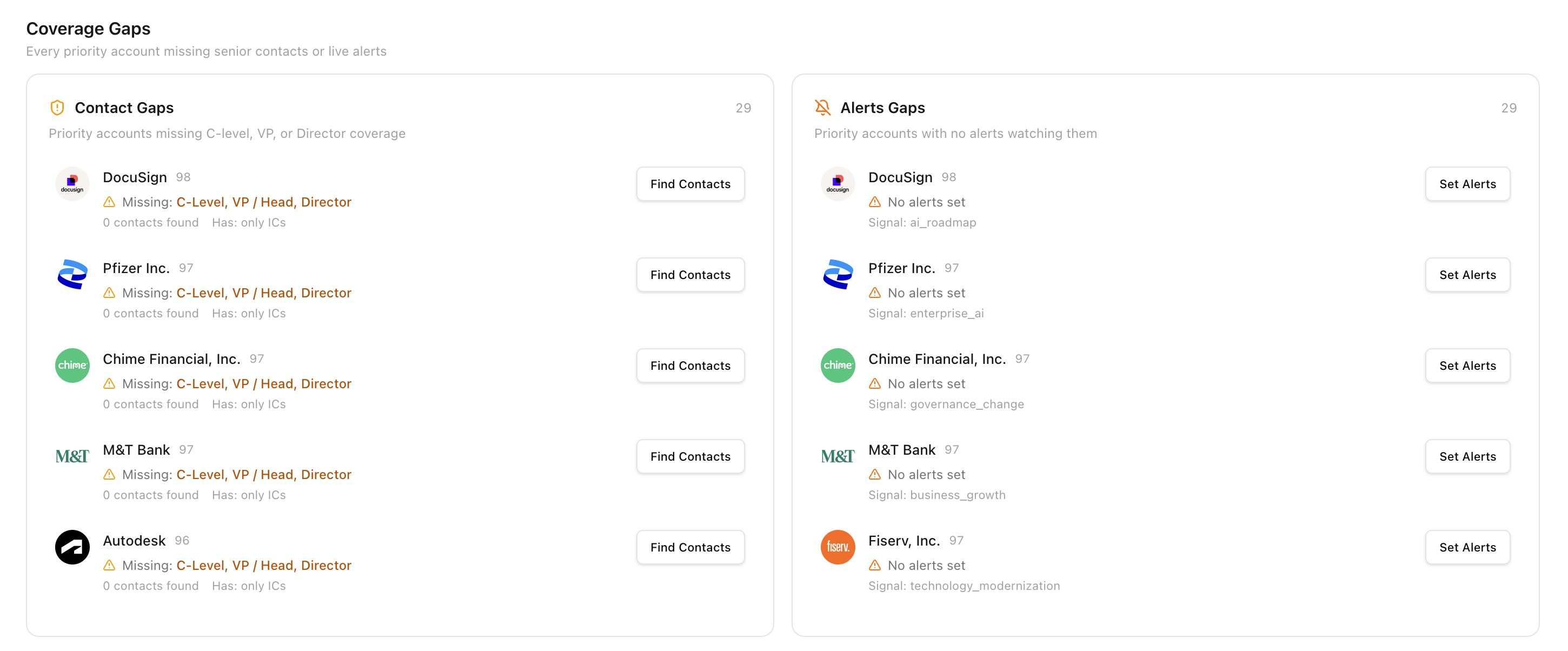
- Identify gaps early — Coverage Gaps in Home Command Center shows you which priority accounts are missing senior contacts before it becomes a problem.
What this looks like in practice:
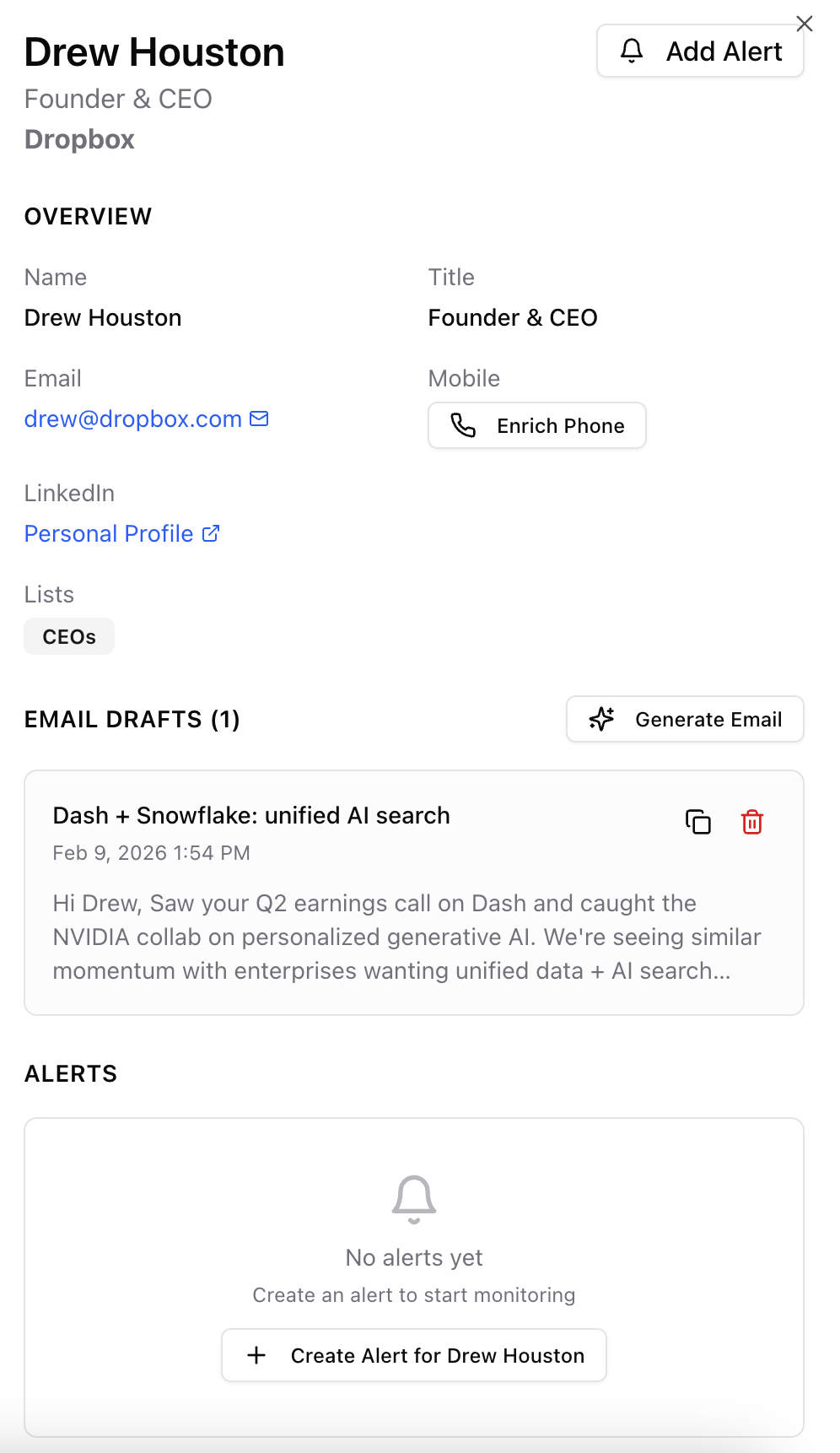
You're working a deal at a company and your main contact is a Director of Engineering. You need to multi-thread to their VP and the CTO, but you don't know who they are or how to reach them.
- Click Find Contacts on the account.
- ChatAE runs background enrichment for senior titles.
- New contacts appear with enriched profiles.
- Generate an org chart to see the structure.
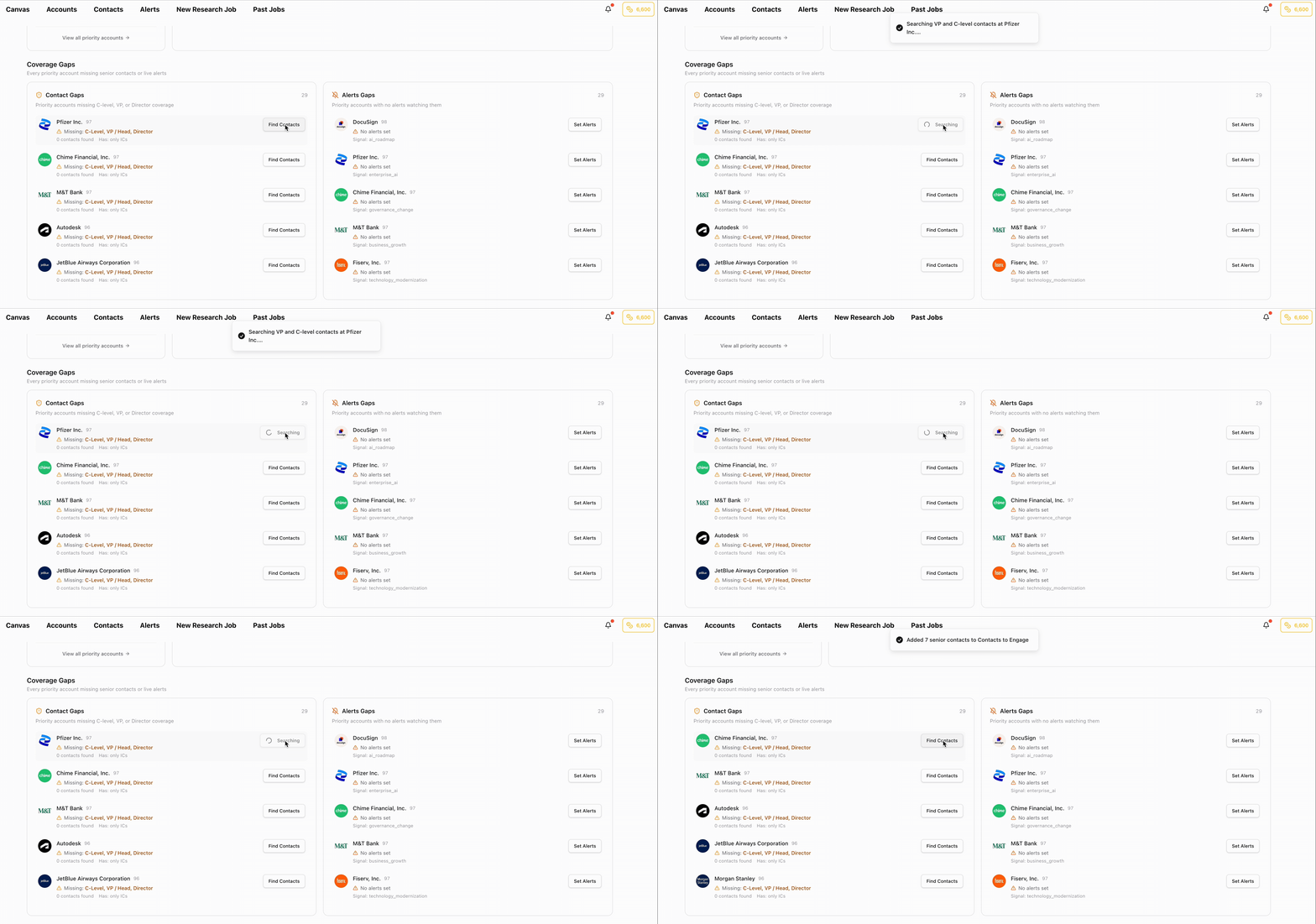
Now you know who to reach, how to reach them, and where they sit in the organization — without a single manual search.
3. Call Prep That Doesn't Take 30 Minutes
The manual version: Before every call, you open the CRM, check recent notes, search for company news, look at the contact's LinkedIn, review the last email thread, and try to walk in with something intelligent to say. Multiply this by 4–6 calls a day.
With ChatAE: Open the account. Everything you need is already there.
ChatAE eliminates call prep as a separate task because the information is maintained continuously:
- Account triggers — What's happened at the company since your last conversation, evaluated against your deal.
- Contact context — Who you're meeting with, their role, and what matters to them.
- Alert history — Any news that fired since the last touchpoint.
- Research synthesis — A ready-made brief on why this account matters right now.
The workflow:
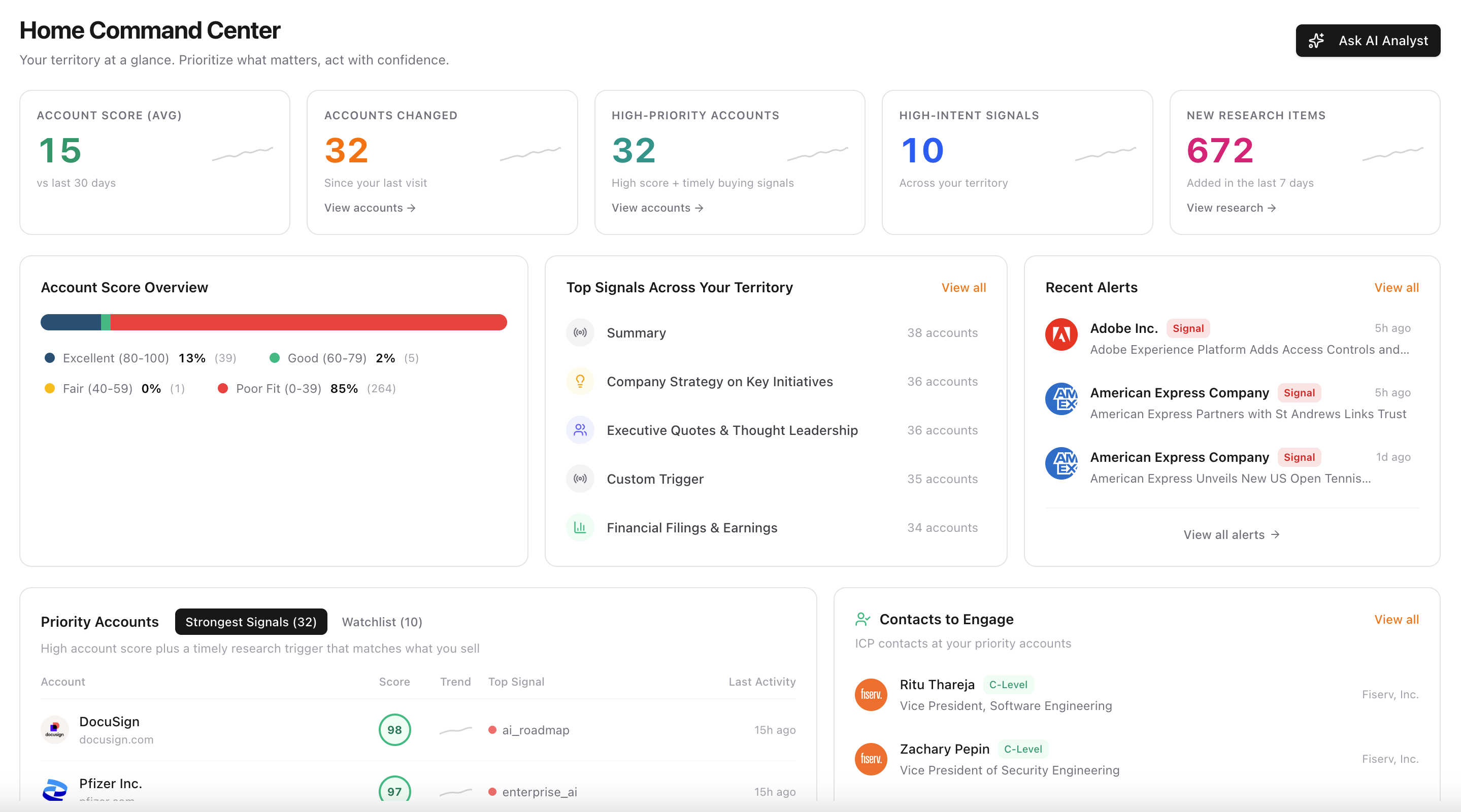
- Open Home Command Center 10 minutes before your day starts.
- Check Strongest Signals for the accounts you're meeting with today.
- Click into the signal for a full research brief — trigger, reasoning, sources.
- You walk into the call with a point of view, not a set of questions you could have Googled.
For AEs managing 20+ active accounts, this isn't optional. You can't manually prep for every conversation and still have time to run them.
4. Personalized Outreach at the Account Level
The manual version: Write a unique email to every stakeholder at every account. Try to reference something relevant. Try to make it sound like you. Copy-paste from templates and hope nobody notices they got the same email as their colleague.
With ChatAE: Generate personalized outreach grounded in account research and contact context — different angles for different stakeholders in the same deal.
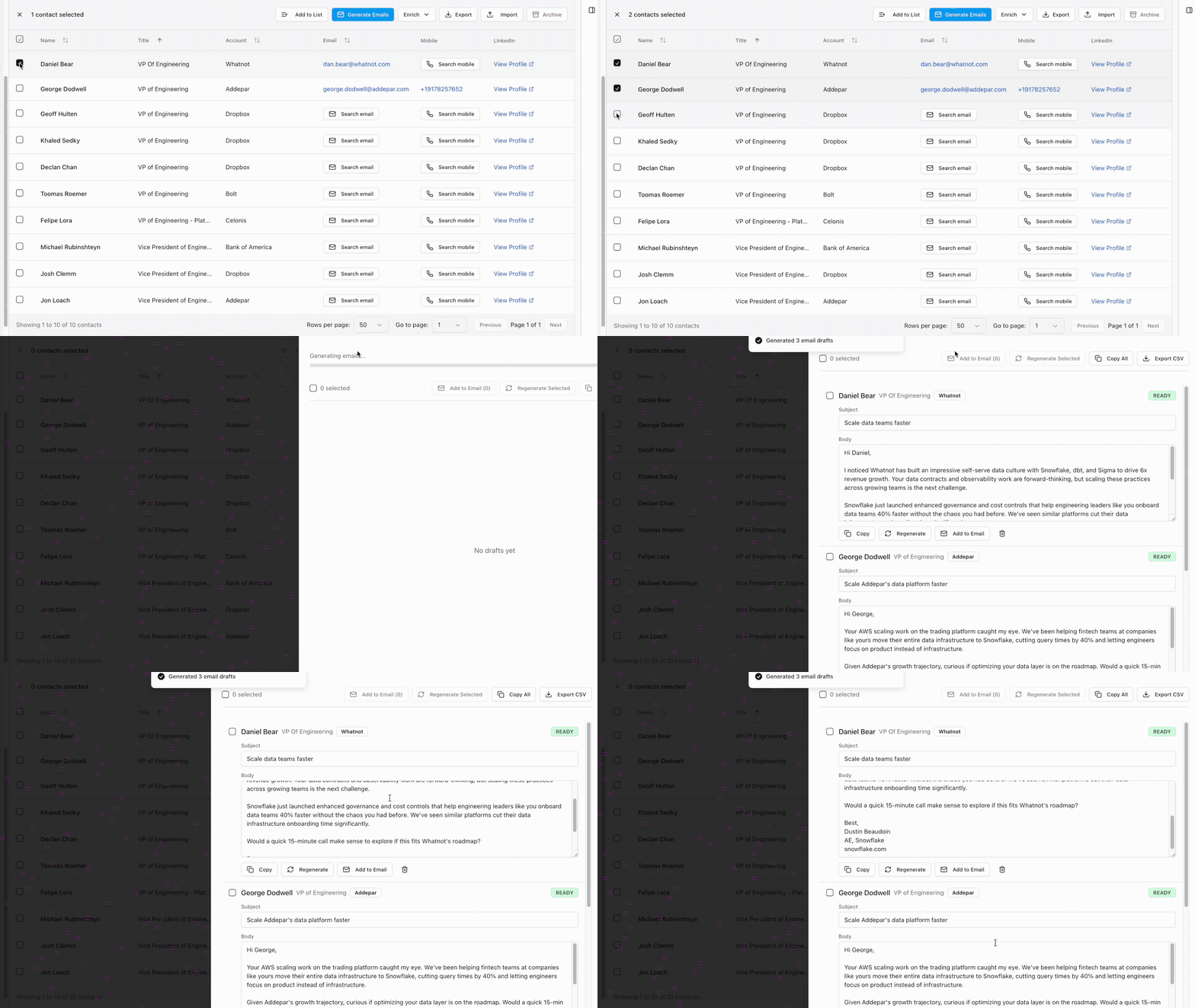
The difference for AEs versus SDRs: you're often writing to multiple people at the same account with different messages. The CTO cares about technical architecture. The VP of Sales cares about revenue impact. The CFO cares about ROI. Each needs a different angle on the same deal.
ChatAE handles this because every draft is built from:
- Account-level triggers — What's happening at the company that creates urgency.
- Contact-level context — Who this person is and what they care about.
- Your voice — Tone and style that matches how you actually write.
Example multi-thread outreach:
You have a deal at a company that just announced a platform consolidation initiative. You need to reach three stakeholders:
- CTO — Draft references the platform consolidation and positions your product as the integration layer.
- VP of Engineering — Draft focuses on reducing tool sprawl for their teams.
- CFO — Draft leads with cost reduction from consolidating vendors.
Same account context. Three different emails. Each relevant to the person receiving it. Generated in minutes, not hours.
5. Pipeline Management Without the Manual Updates
The manual version: After every call, update the CRM. Change the stage. Update the close date. Adjust the amount. Add notes. Update the forecast. Answer your manager's Slack asking what changed. Do this for every deal, every day.
With ChatAE: Account context stays current automatically through research and alerts. The information that matters for pipeline decisions is maintained without manual entry.
ChatAE doesn't replace your CRM — it prevents the manual work that keeps CRM data stale:
- Account intelligence updates continuously — When a trigger fires or an alert lands, the account context refreshes. You don't update a record manually — the system maintains awareness.
- Signals inform pipeline decisions — Instead of relying on rep memory for what changed, signals and alerts create an audit trail of why accounts move.
- Priority shifts are visible — Home Command Center re-ranks accounts as new signals arrive. An account that went quiet drops to Watchlist. An account with a new trigger rises to Strongest Signals.
What this means daily:
When your manager asks "what changed this week," you don't reconstruct from memory. You open the account and the signals are there — timestamped, sourced, and connected to your triggers. The system maintained the context while you were selling.
6. Deal Materials Without Starting From Scratch
The manual version: Build an executive summary for the deal review. Create a business case for the economic buyer. Put together a mutual action plan. Write the QBR deck. Each one starts from a blank page and takes hours.
With ChatAE: Use AI Analyst to generate deal materials grounded in your account context — the research, contacts, and signals ChatAE already maintains.
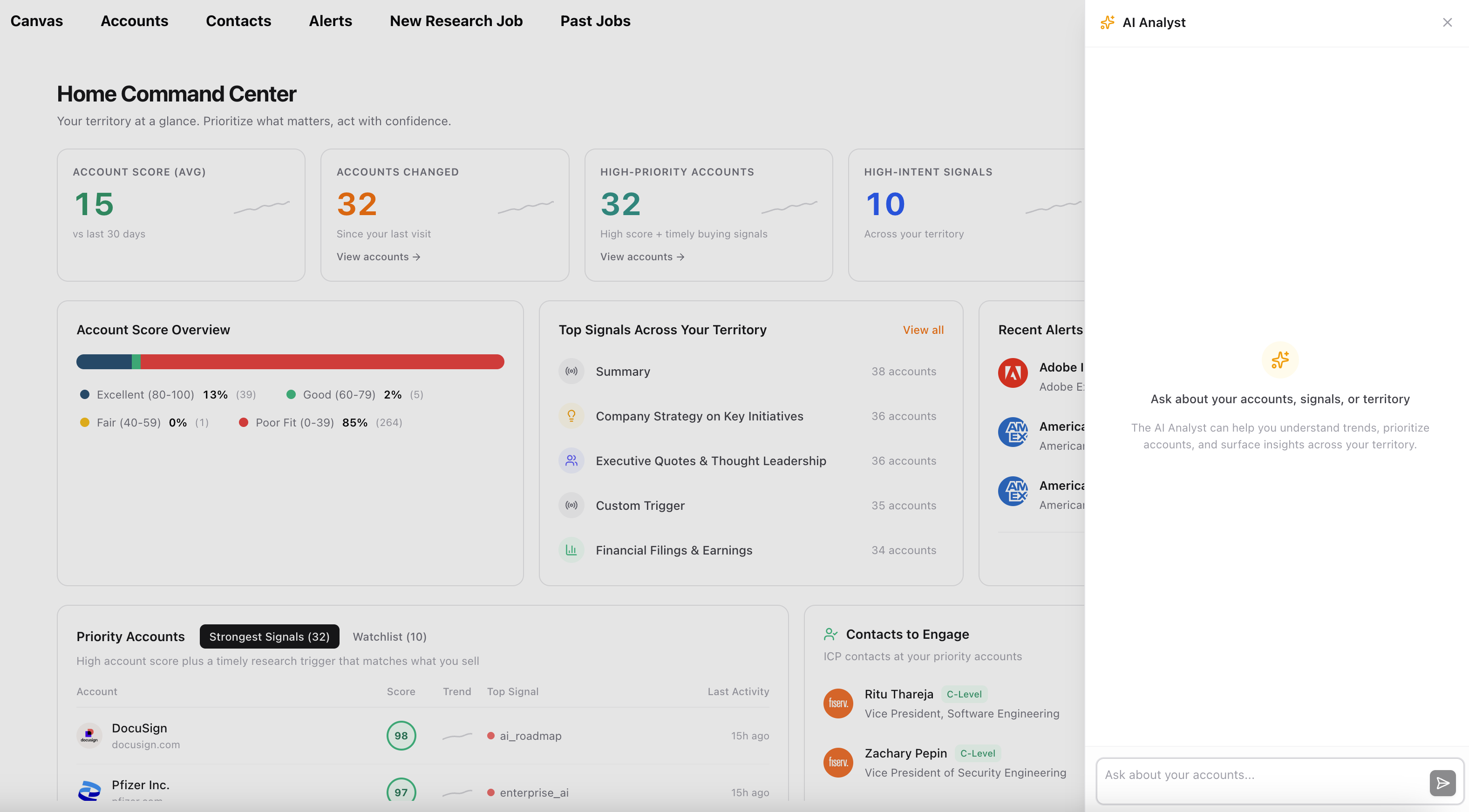
AI Analyst has access to the same tools as Canvas. That means you can go from account intelligence to shareable output without leaving the platform:
- Personalized landing pages — Generated from account context and shareable with a link.
- Org charts — Built from your enriched contacts.
- Account briefs — Synthesized from research and signals.
- Outreach sequences — Drafted for multiple stakeholders.
Example:
You're preparing for a QBR with your champion. Instead of building a deck from scratch:
- Open AI Analyst from Home Command Center.
- Ask it to summarize the key signals, stakeholder activity, and open opportunities at the account.
- Use the output as the foundation for your QBR materials.
What took an afternoon now takes 15 minutes — and it's grounded in real data, not your memory of what happened three months ago.
Putting It All Together: The AE Day Without Admin
7:45 AM — Open Home Command Center. Two priority accounts have new signals. One announced a leadership change in your buying committee. Another had an alert fire on a competitive displacement.
7:50 AM — Read the research. Click into both signals. Full context: what happened, why it matters, sourced evidence. You now have a point of view for your 9 AM call and a reason to re-engage the stalled deal.
8:00 AM — Check stakeholder coverage. The account with the leadership change has a new CTO you haven't reached. You click Find Contacts. It runs in the background.
8:05 AM — Draft multi-thread outreach. Generate a personalized email to the new CTO referencing the competitive displacement signal. Generate a separate email to your existing champion about the leadership change and what it means for the project timeline.
8:15 AM — Prep for the 9 AM. Open the account. The research brief is there. The org chart shows the full buying committee. You know what happened, who matters, and what to say.
8:20 AM — Done. You've done an hour of admin work in 35 minutes. The rest is selling — the calls, the conversations, the deal strategy that actually closes revenue.
What This Doesn't Do
ChatAE does not:
- Close deals for you
- Negotiate pricing
- Run discovery calls
- Make strategic judgment calls about deal timing
- Replace the relationship between you and your buyer
It handles the administrative layer — the research, enrichment, monitoring, prep, and content generation that sits between you and selling time. The strategy stays with you. The grunt work doesn't.
Getting Started
If you're an AE spending more time on admin than on buyers:
- Set up your profile — What you sell, how you sell it, and what events create urgency in your deals.
- Define research triggers — Executive changes, technology investments, competitive displacement, budget cycles, hiring patterns.
- Run research on your strategic accounts.
- Find contacts at accounts where you need to multi-thread.
- Set alerts on active deals so you never miss a signal.
- Use Home Command Center to start every day with context, not a scramble.
The administrative work doesn't disappear overnight. It disappears because the system maintains account context, surfaces what matters, and generates the materials you need — while you focus on the conversations that close deals.